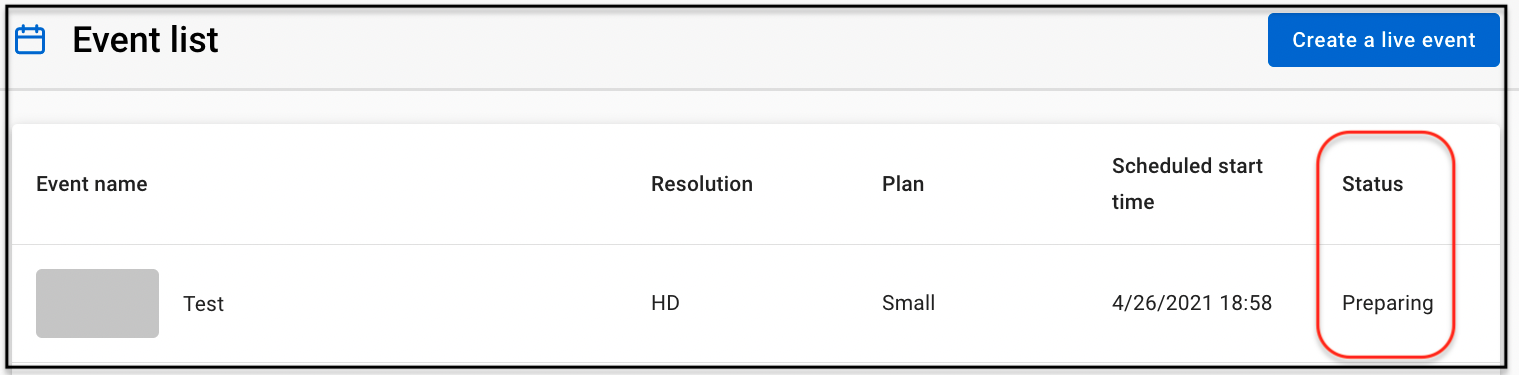
Live event will show different statuses on Event list in CMS.
- Case for utilizing live event only
Event status of whole process: Preparing > Preview available > Processing > Preview > Live > Ended > Archived
1. Preparing: Once the event is created, status will show Preparing. Please notice that some items are only can be edited in this status. Please refer to Edit a live event for more details.
2. Preview available: 12 hours before event starts, status will change to Preview available. Server is on standby and you can manually start the server for event rehearsal if necessary.
3. Processing: Click "Preview stream" button in Control room to start server, and then status will change to Processing. Please notice that it will take a few minutes to prepare for the action.

4. Preview: When server is ready, the status will change to Preview. Then, you can send your signal and start your rehearsal. If you want to know details of rehearsal, please refer to Rehearse live signal.
5. Live: After you click "Go live" button in Control room to start the live event, the status will change to Live.

6. Ended: After you click "End live" button in Control room to end the live event, the status will change to Ended.
7. Archived: Few days later after the live event ended, status will change to Archived.
Don’t worry, Archived status will not affect your check on event’s any information.
- Case for utilizing "Recording for VOD"
Event status of whole process: Preparing > Preview available > Processing > Preview > Live > Encoding > VOD > Ended > Archived
1. Preparing: Once the event is created, status will show Preparing. Please notice that some items are only can be edited in this status. Please refer to Edit a live event for more details.
2. Preview available: 12 hours before event starts, status will change to Preview available. Server is on standby and you can manually start the server for event rehearsal if necessary.
3. Processing: Click "Preview stream" button in Control room to start server, and then status will change to Processing. Please notice that it will take a few minutes to prepare for the action.
4. Preview: When server is ready, the status will change to Preview. Then, you can send your signal and start your rehearsal. If you want to know details of rehearsal, please refer to Rehearse live signal.
5. Live: After you click "Go live" button in Control room to start the live event, the status will change to Live.

6. Encoding: After you click "End live" button in Control room to end the live event, the status will change to Encoding.
7. VOD: When the live event is completed transcoding through KKStream recording service and can be played as VOD content, the status will change to VOD.
8. Ended: After VOD published time is ended, status will change to Ended.
9. Archived: Few days later after VOD playback is ended, status will change to Archived.
Don’t worry, Archived status will not affect your check on event’s any information.
Note: Even though you do not plan to make a rehearsal, it still needs to go through the following process before starts your live event: Preview available > Processing > Preview. In order to start live on time, please allow at least 30 minutes prior to your event start time for starting server.