There are different event statuses on Event list to show the current situation. At first, after the event is created, status will show Preparing until 12 hours before your event starts.
- Event status of whole process for utilizing live event only:
Preparing > Preview available > Processing > Preview > Live > Ended > Archived
- Event status of whole process for utilizing "Recording for VOD":
Preparing > Preview available > Processing > Preview > Live > Encoding > VOD > Ended > Archived
Please refer to What is the meaning of each status on CMS ? to realize the whole process of event statuses.
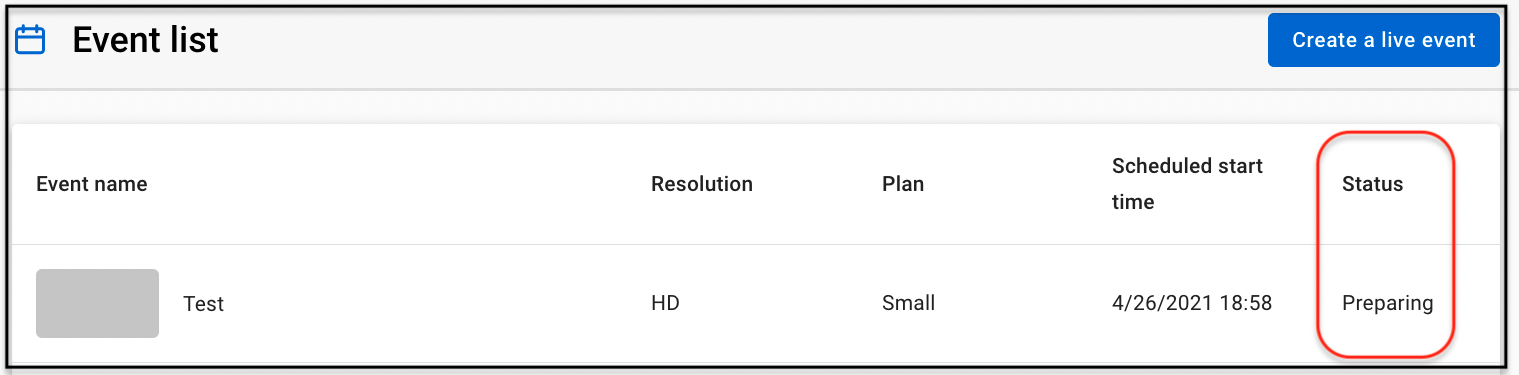
1. Click "Event list” button in the left sidebar and all the created events will be listed.

2. Click the event you want to edit on Event list section.
3. Click "Edit" button in the upper right corner to start your edit.

Some items are only editable at specific status. Please follow the editable period and information as below to edit your event items:
| Item | Editable Period
No Later than |
Note |
| Event name |
When utilizing live event only, please edit it no later than "Live" |
The max length is 50 characters. |
|
When utilizing "Recording for VOD"service, please edit it no later than "VOD" |
||
| Event ID | Preparing |
The max length is 150 characters. It has to be unique and can only consist of English letters , numbers (0~9), hyphen (-), underscore (_) and dot (.). |
| Scheduled start time | Preparing |
1. Scheduled start time has to be set at least 7 days later from now if real-time assistance is required, and at least 21 days later if a Massive plan is selected. 2. Scheduled start time is set to estimate how the preparation will be taken for the live event. The accurate live event will start after you click "Go live” button. If you want to know how to start live event, please see the details in Start a live event. 3. If the event’s time zone is different from the system time, please calculate and set the time zone the same as the computer system time. |
| Scheduled end time | Preparing |
1. Scheduled end time has to be set later than the scheduled start time. 2. Scheduled end time is set to estimate how the preparation will be taken for the live event. The accurate live event will end after you click "End live” button. If you want to know how to end live event, please see the details in End a live event. 3. If the event’s time zone is different from the system time, please calculate and set the time zone the same as the computer system time. |
| Cover image |
When utilizing live event only, please edit it no later than "Live" |
The file size should be less than 5MB and format should be jpg, jpeg or png. |
|
When utilizing "Recoding for VOD"service, please edit it no later than "VOD" |
||
|
Plan
|
Preparing | Scheduled start time has to be set at least 21 days later if a Massive plan is selected. |
| Estimated users | Preparing | - |
| Real-time assistance | Preparing | Scheduled start time has to be set at least 7 days later from now if real-time assistance is required. |
|
Resolution
|
Cannot be edited through CMS after live event is created. | - |
|
Type
|
If you want to edit this item, please Contact us. |
The following features are only available on Private event:
|
|
Concurrent device limit per user (Maximum value is 255) |
Preparing | Please fill in 0 if you do not want to limit the number of devices. |
| Chatroom |
When utilizing live event only, please edit it no later than "Live" |
1.Chatroom feature only supports private events at the moment. 2. If you want to know how to manage settings of chatroom, please look into Manage settings of chatroom for more details. |
|
When utilizing "Recording for VOD"service, please edit it no later than "VOD" |
||
| Poll |
Edit no later than "Live" |
1. Poll feature only supports private live events at the moment. You won’t be able to utilize the feature during the VOD period. |
| Available region |
Cannot be edited through CMS after live event is created. If you want to edit this item, please Contact us 5 days before your scheduled event starts. |
|
| DRM |
Cannot be edited through CMS after event is created. If you want to edit this item, please Contact us. |
- |
| Watermark | Edit no later than "Preview" |
1. Watermark is only available to the premium plan. 2. User ID as watermark only supports private events. |
| Domain control | Edit no later than "Preview" |
- |
|
Recoding for VOD |
Cannot be edited through CMS after live event is created. If you want to edit this item, please Contact us. |
Recording for VOD can only record up to 8-hour-long live event. Please refer to Utilize Live to VOD for more details. |
|
VOD start time |
Edit no later than "Encoding" |
1. VOD start time has to be set later than the time you create your event. If VOD start time is not set, VOD will be published when recording finishes. 2. Recording time for VOD will take at least twice as long as live event time. For example, an-hour-long live event will take 2 hours for recording to VOD. |
|
VOD end time |
Edit no later than "VOD" |
VOD end time has to be set later than the VOD start time. |
The available resolution options include:
|
Resolution |
Support Player Setting |
Available Adaptive Resolution |
4K |
Auto |
|
|
2160p |
|
|
|
1080p |
|
|
|
720p |
|
|
|
480p |
|
|
|
360p |
|
|
|
240p |
|
|
|
FHD |
Auto |
|
|
1080p |
|
|
|
720p |
|
|
|
480p |
|
|
|
360p |
|
|
|
240p |
|
|
|
HD |
Auto |
|
|
720p |
|
|
|
480p |
|
|
|
360p |
|
|
|
240p |
|
4. Click "Save" button in the upper right corner when you finish editing.