Before starting your live event, please create a live event to provide us the event information and related settings.
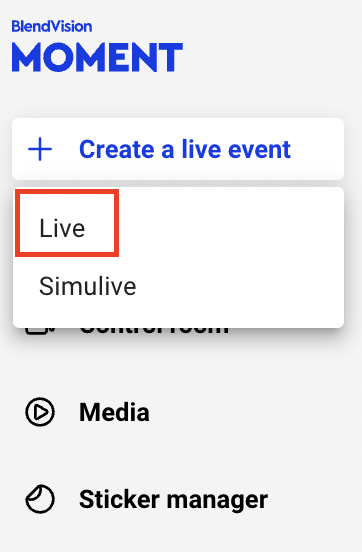
1. Click the "Create a live event” button then select "Live" in the left sidebar or the upper right corner to start creating the new event.
The first section is Event Information

2. Set the title and fill in the Event name for your live event.
Note: The max length of Event name is 50 characters.
3. Event ID is used for data mapping. Please make sure that you have filled in the Event ID if you need to map the existing membership data to KKStream server.
Note: The max length of Event ID is 150 characters. It has to be unique and can only consist of English letters, numbers (0~9), hyphen (-), underscore (_) and dot (.).
4. Select the event Scheduled start time (system date and time) and click "OK".
Note:
- Scheduled start time has to be set at least 7 days later from now if real-time assistance is required, and at least 21 days later if a Massive plan is selected.
- Scheduled start time is set to estimate how the preparation will be taken for the live event. The accurate live event will start after you click the "Go live" button. If you want to know how to start a live event, please see the details in Start a live event.
- If the event’s time zone is different from the system time, please fill in based on the computer system time zone.
5. Select the event Scheduled end time (system date and time) and click "OK".
Note:
- The Scheduled end time has to be set later than the Scheduled start time.
- Scheduled end time is set to estimate how the preparation will be taken for the live event. The accurate live event will end after you click the "End live" button. If you want to know how to end a live event, please see the details in End a live event.
- If the event’s time zone is different from the system time, please fill in based on the system time zone.
6. Cover image will be displayed on the player prior to the event beginning. If you want to utilize a cover image, please click the "Select" button and upload your preferred cover image.
Note: The file size of the cover image should be less than 5MB and the format should be jpg, jpeg, or png.
The second section is Event Settings 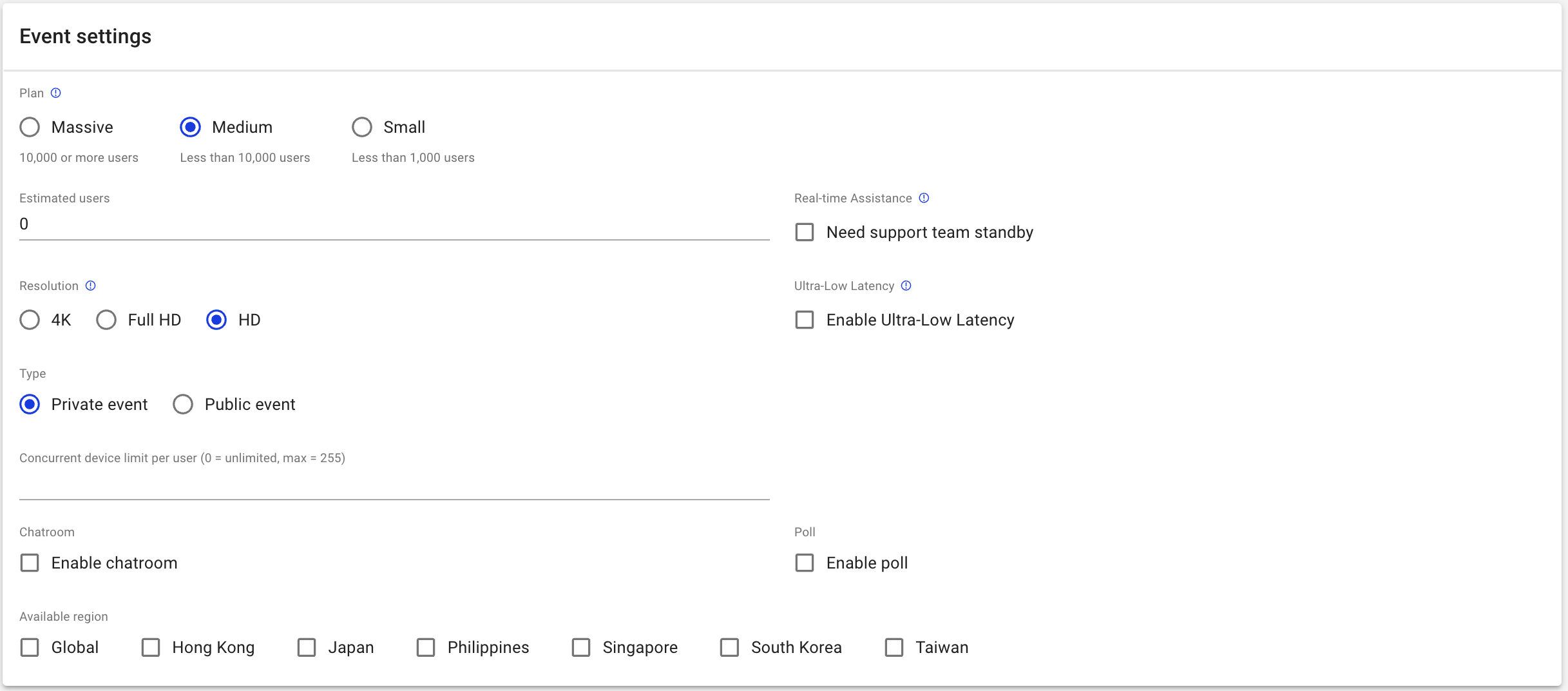
7. Select your event Plan based on the scale of the live event. We provide three plans according to user amount:
- Massive: The total concurrent users are 10,000 or more.
- Medium: The total concurrent users are less than 10,000 (Set as the default plan).
- Small: The total concurrent users are less than 1,000.
Note: Scheduled start time has to be set at least 21 days later if a Massive plan is selected.
8. To ensure the stability of the system during the live event, please provide the estimated number of peak concurrent users and fill in Estimated users.
9. BlendVision Moment provides real-time assistance during events. You can contact the KKStream support team and receive online responses via CMS chat. Mark the checkbox if you need Real-time assistance.
Note: Scheduled start time has to be set at least 7 days later from now if real-time assistance is required.
10. Select your preferred Resolution to set up the resolution for live streaming. The available resolution options include:
- 4K
- Full HD
- HD (Set as the default resolution)
|
Resolution |
Support Player Setting |
Available Adaptive Resolution |
4K |
Auto |
|
|
2160p |
|
|
|
1080p |
|
|
|
720p |
|
|
|
480p |
|
|
|
360p |
|
|
|
240p |
|
|
|
FHD |
Auto |
|
|
1080p |
|
|
|
720p |
|
|
|
480p |
|
|
|
360p |
|
|
|
240p |
|
|
|
HD |
Auto |
|
|
720p |
|
|
|
480p |
|
|
|
360p |
|
|
|
240p |
|
11. Streaming latency is the delay between the video signal generating and the video being displayed to the audience. Reducing the video streaming latency will bring a better interactive experience for the audiences. Mark the checkbox if you want to enable Ultra-Low Latency.
Note:
- This advanced feature will be available upon request, please inquire your sales representative to initiate the ultra-low latency feature.
- Applying Ultra-Low Latency will have the following limitations:
- 4K resolution not supported
- DRM function not supported
- Recording for VOD function not supported
- Backup RTMP signal not supported
- To achieve ultra-low latency live streaming, there are more limitations on the input signal format compared to low latency, please refer to Are there format limitations to the streaming? for the format information and How to live stream with OBS Studio for an example of how to set the input signal.
12. Select your event Type from which user type is permitted to view the live events. You can choose between private event and public event:
- Private event (Set as the default type): If your event only provides for the specified people and groups, please choose Private event.
- Public event: When you choose Public event, your event will be open to the general public. No sign-in is required.
Note: The following features are only available for Private event:
- Concurrent device limit per user
- Chatroom
- Polls
13. You can decide the limit on the number of devices that can stream live event simultaneously for per user. Please fill your allowed number in Concurrent device limit per user. (Maximum value is 255.)
Note: If you do not want to limit the number of devices, please fill in 0.
14. Chatroom provides real-time interaction service with your users via text, emoji or custom stickers. Mark the checkbox if you want to utilize Chatroom. And once you enable the chatroom feature, you can directly choose the main color of the theme for your chatroom. After that, you would see your chatroom when your live event goes to the preview status.
If you are hosting a live-to-VOD event and expecting to manage the chatroom setting of VOD, you could manage it on the setting of VOD. Once you select Enable recording for VOD, you can set up the source of VOD and chatroom as well. The options of chatroom are as same as live setting, you would see your chatroom when your event goes to the VOD status.
Note:
- Chatroom feature supports both public and private events. But, they are not editable after you creating the event. As a result, set up your chatroom setting before kick-off.
- If you want to know how to manage settings of chatroom, please look into Manage settings of chatroom for more details.
15. You can create a poll to interact with your users during a live event. Poll feature is embedded in KKStream player, and thus if you have integrated KKStream player on your website, the poll feature is included. Mark the checkbox if you want to utilize Poll.
Note:
- Poll feature only supports live events and simulive except for VOD playback mode. You won’t be able to utilize the feature during the VOD period.
- If you want to know how to manage settings of poll, please look into Manage a poll for more details.
16. BlendVision Moment provides customers to manage the available regions where the users can access the streaming service. Through Available region, you can specify which region is authorized to access the live event. We provide the available regions as below:
- Global: If you expect your event to be watched all over the world, please check Global.
- If you want to restrict the available region, please check the religion you want from:
- Hong Kong
- Japan
- Philippines
- Singapore
- South Korea
- Taiwan
The third section is Content protection settings
17. Our service provides DRM (Digital Rights Management) protection. DRM protections can protect contents during digital data transmission from a (source) device to another (display) device and avoid screen recording. Mark the "Enable DRM" checkbox if you need DRM.
Note: If you want to know the details of DRM protections, such as playback devices and OS version, please look into Does my devices support live streaming under DRM restrictions? for more information.
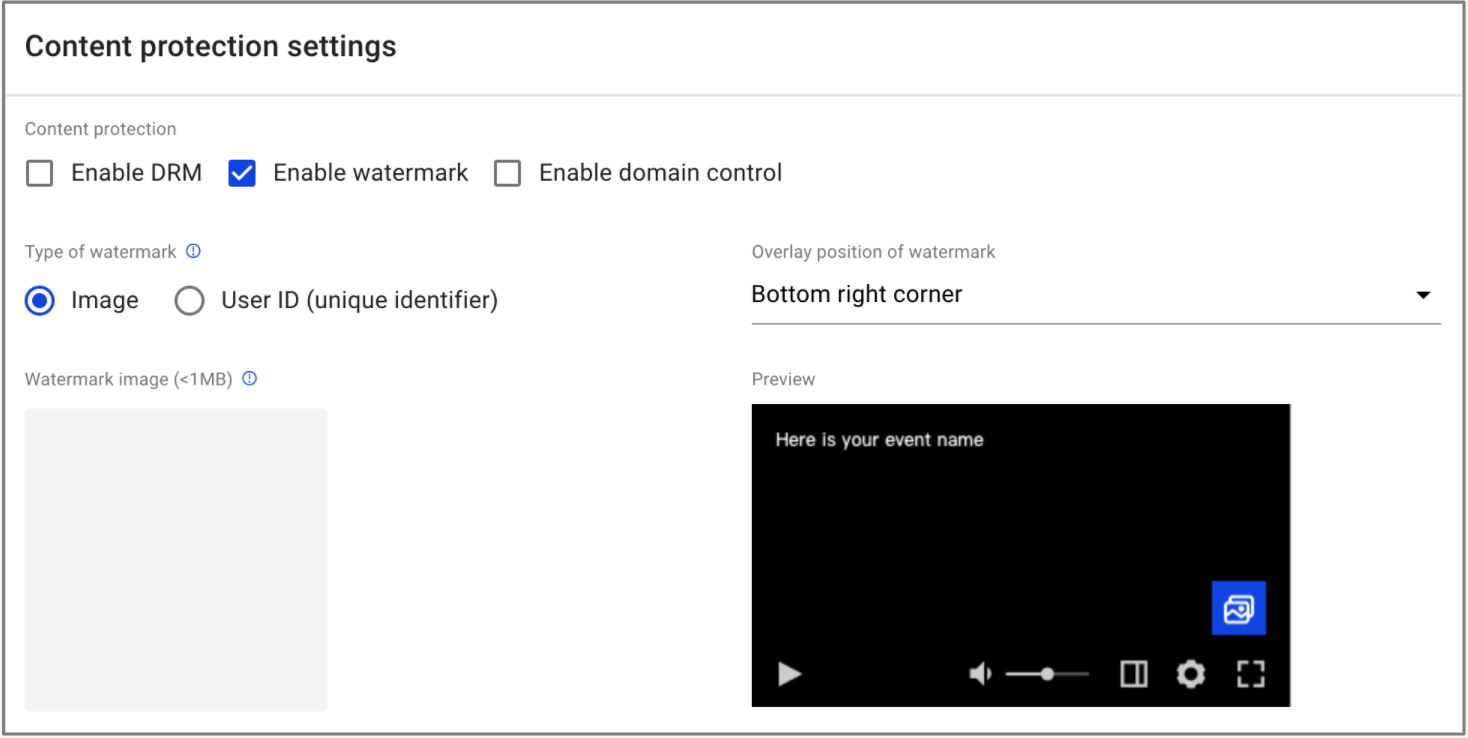
18. Enable watermark to claim the copyright or identify who pirated the content. The audience will see the watermark overlaid on the video at the assigned spot during streaming. Mark the "Enable watermark" checkbox if you need a watermark.
19. Once you mark "Enable watermark", select the type of watermark to be "Image" or "User ID (unique identifier)“.
- Image: click "Select" button and upload your preferred Watermark image.
- User ID (unique identifier): this option use viewer's ID as the watermark and is only available for private events. Make sure you've integrated KKStream API gateway with your existing membership for this type of watermark to function properly. Contact us to learn how to integrate KKSream API gateway.
You can also choose the overlay position of the watermark and preview how it will display on the player. If you choose the position to be "Random", the watermark will shift in the corners randomly every few seconds.
Note: Due to iOS limitations, watermark doesn't support iOS devices in full-screen mode.
Note: The file size of the watermark image should be less than 1MB and the format should be png, jpg, jpeg, or gif. It is recommended to upload a 270x270px image.
20. To ensure your content streams only at validated channels, mark the "Enable domain control" checkbox to start the settings.
Note: You need to integrate with Web Premium SDK provided by BlendVision first for the feature to be utilized. Please Contact us to learn more about Web Premium SDK.
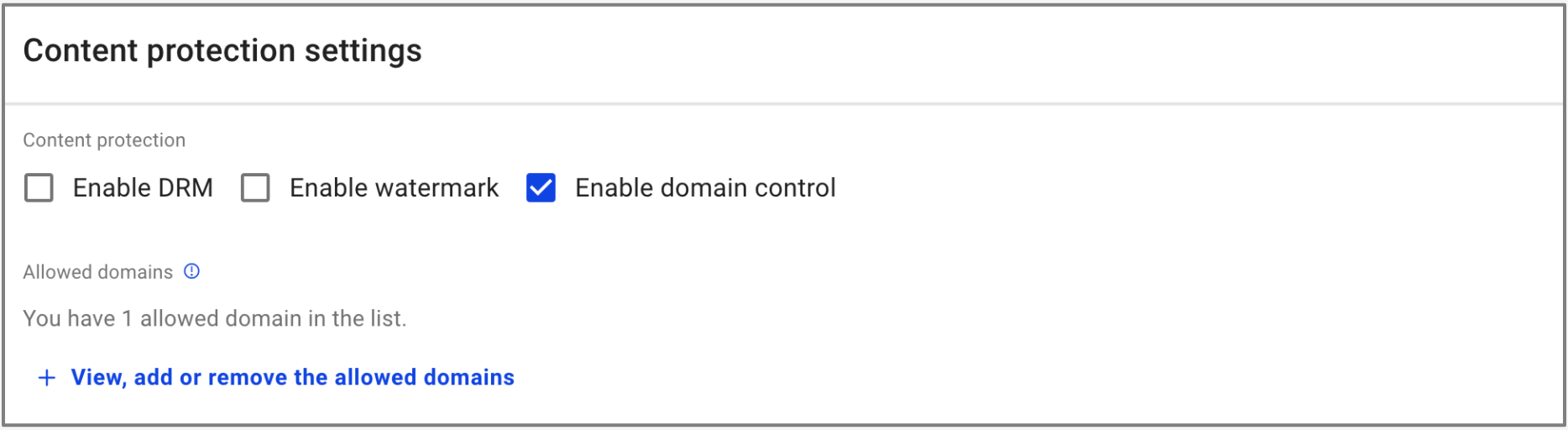
21. Once you mark "Enable domain control", you can see how many domains have been whitelisted for the event. Click "+ View, add or remove the allowed domains" to edit the domain list.
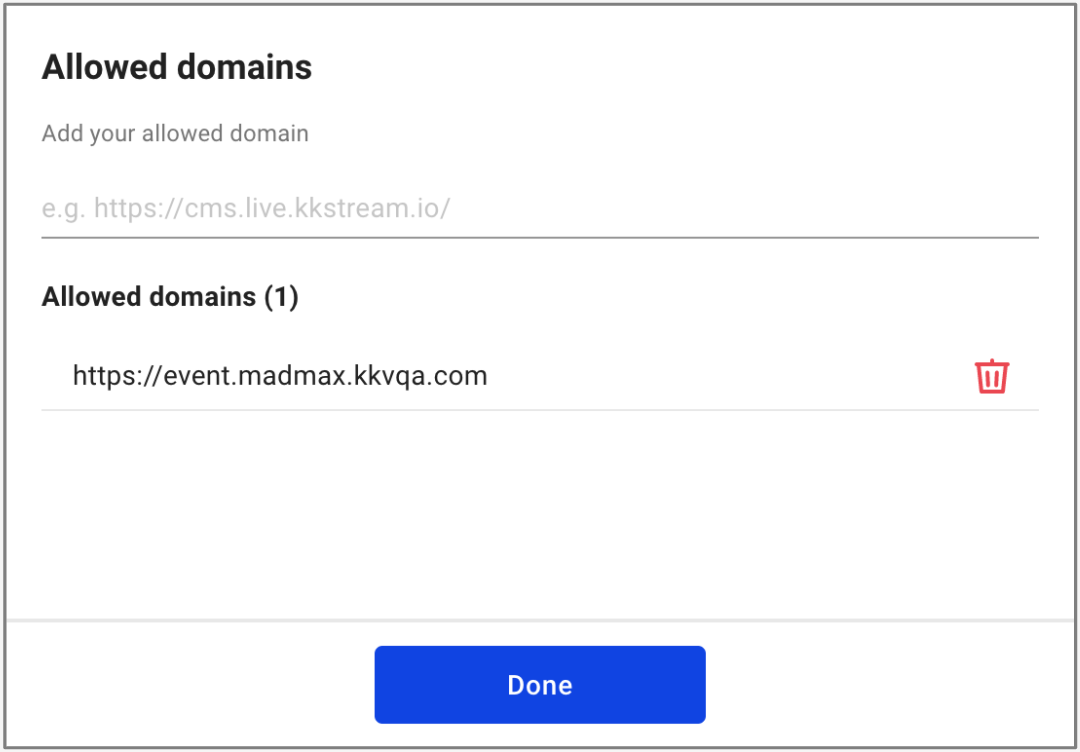
22. After clicking "+ View, add or remove the allowed domains", you can confirm the validated domain list, add a new domain, or delete one from the list.
The fourth section is Recording for VOD

23. We enable event recording service for your live event. Your event can be automatically transcoded by our service and turn into compatible VOD content to multiple platforms. Therefore, users can watch videos at any suitable time after event ends. Mark the checkbox if you want to utilize Event recording.
Note: If you want to know related information about Live to VOD, please look into Utilize Live to VOD for more details.
24. Once you mark "Enable event recording,” please also provide your preferred published start time and end time for your users to watch VOD and fill in VOD start time and VOD end time.
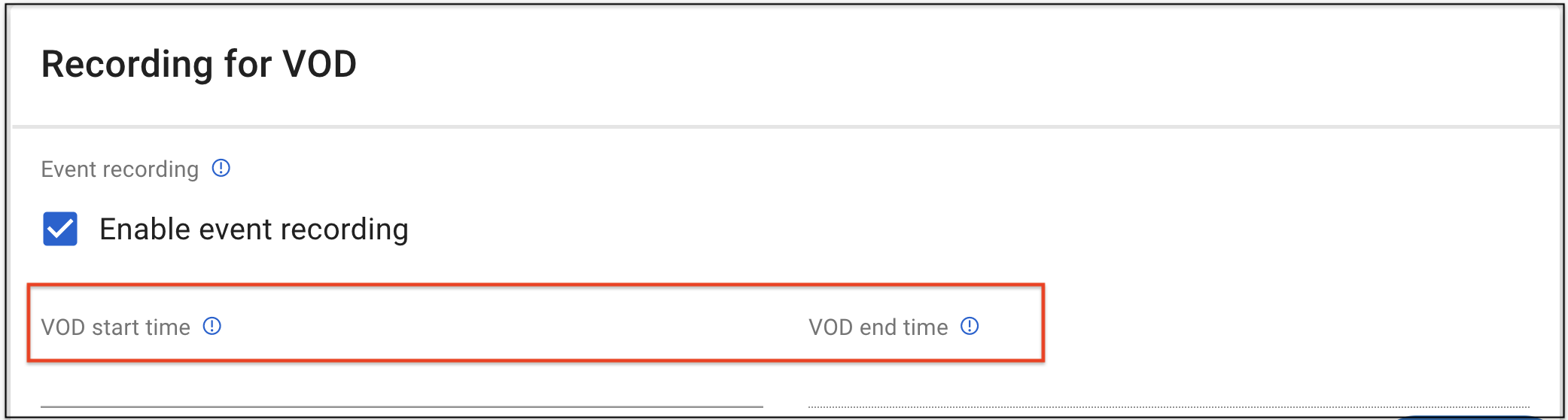
Note:
1. "VOD start time" has to be set later than the time you create your event. If "VOD start time" is not set, VOD will be published when recording finishes.
2. Recording time for VOD will take at least twice as long as live event time. For example, an hour-long live event will take 2 hours for recording to VOD.
3. The "VOD end time" has to be set later than the "VOD start time".
4. After you create the live event, you can also check "VOD start time" and "VOD end time" in Control room: Control room > Event information section > VOD started at & VOD ended at

25. Click the "Create” button when you fill in all the requests.
Note: If you click the "Discard" button, the data will not be saved after you leave this page.