You can start the event when live is ready to go.
Note: Even though you do not plan to make a rehearsal, it still needs to go through the following process before starts your live event: Preview available > Processing > Preview. In order to start live on time, please allow at least 30 minutes prior to your event start time for starting server. If you want to know detailed procedures, please look into Rehearse live signal for more information.
1. Click "Control room" button in the left sidebar and all the created events will be listed.

2. Click the event you want to start (Status: Preview).

3. When entering the event, you can find "Go live" button in the upper right corner. Click "Go live" button when live is ready to go.

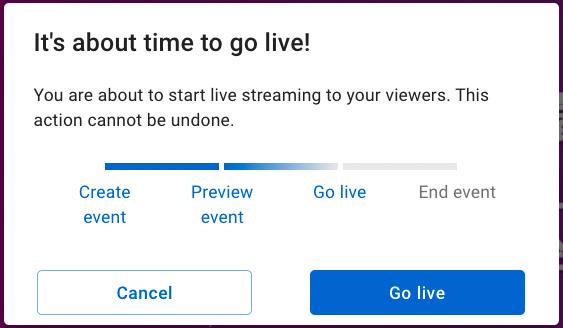
4. Notification of "It’s about time to go live!" will pop up, please click "Go live" button again to start live event.
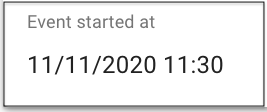
5. After you click start button, you can scroll to the bottom of this Control room page to check event start time at: Event information section > Event started at.
Important: After live event starts, it will go online and can not be paused.
Note:
1. You can interact with your users via chatroom during event. Please look into Manage settings of chatroom for more information.
2. If you want to know related information about Live to VOD, please look into Utilize Live to VOD for more details.