You can create a poll to interact with your users during a live event. Through a poll, you can create poll questions and gather the responses from your users. Poll feature is embedded in KKStream player, and thus if you have integrated KKStream player on your website, the poll feature is included.
If you need poll feature, please mark the checkbox in Poll section when you create a live event.
Note:
1. Poll feature only supports private live events at the moment. You won’t be able to utilize the feature during the VOD period. Please look into Integrate with your existing membership to live event for more information.
2. It is necessary to integrate with KKStream player before creating a poll, please refer to Integrate with KKStream player on your website for more details.
1. Click the "Control room" button in the left sidebar and all the created events will be listed.
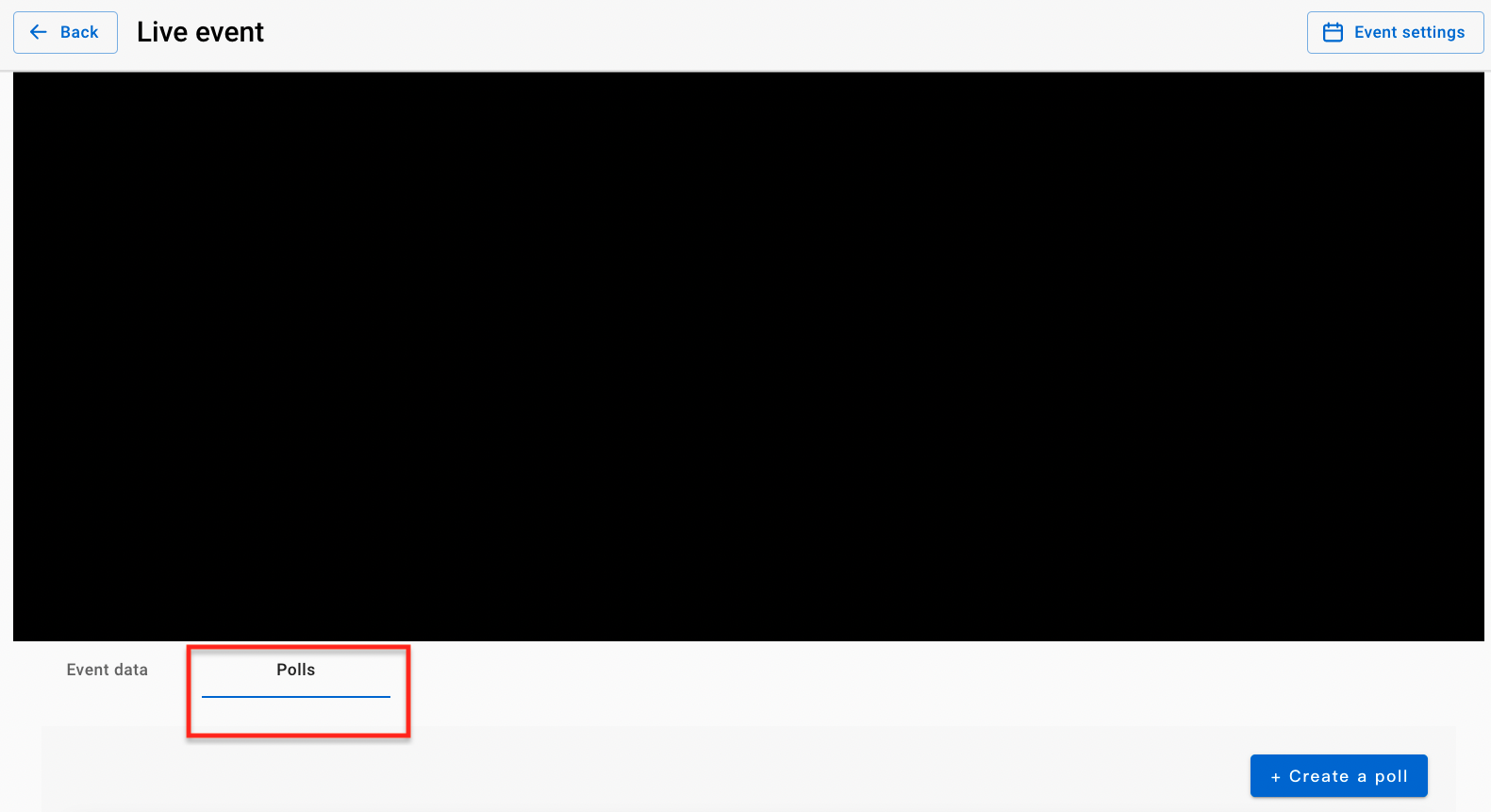
2. Click the event you want to set up polls and then you will find "Polls” button next to the tab of "Event data". Click "Polls” button to start creating the first poll.
3. Click "+ Create a poll" button to add a new poll. You can add multiple polls for a live event and created polls won’t be visible to your users at this point.
4. Fill in your question and answers in the poll. You can create up to 4 answer options and the option amount should not be less than 2. Click "+Add a new option" button to add additional options to your poll. Here are the recommended string lengths:
- Poll question: Less than 90 characters
- Poll option: Less than 30 characters
Since the poll user interface is related to iframe size, please keep the poll question and options simple.
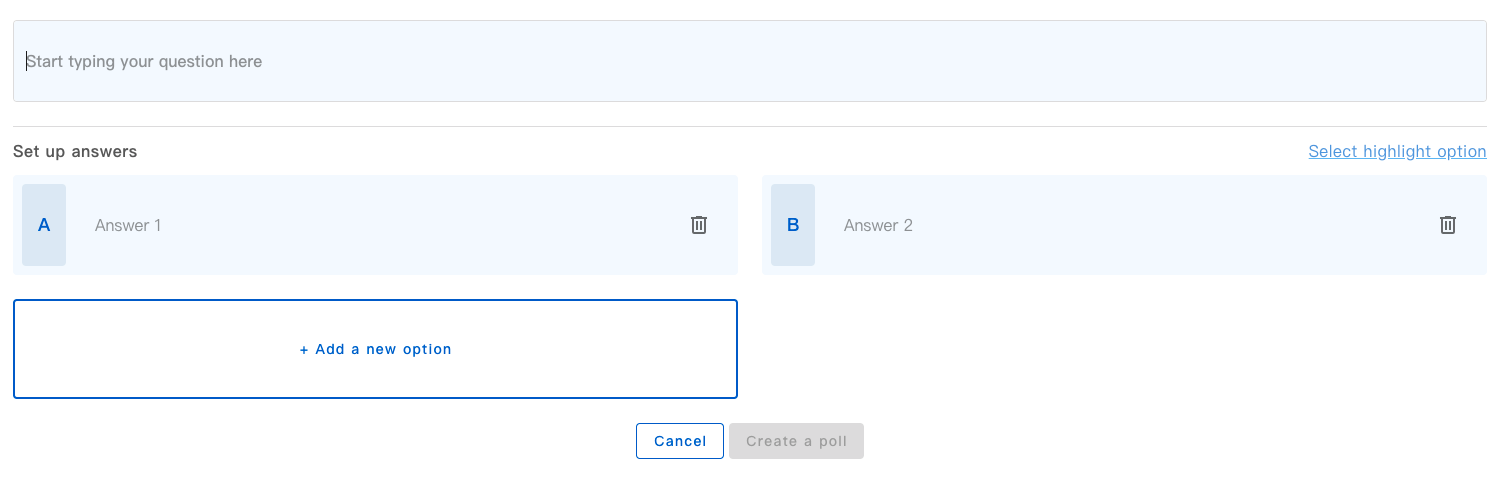
5. You can click "Select highlight option" button to mark the correct answer. When an option is marked, click "Save" button to save the highlight option, and then users will see the option being highlighted in blue when poll result is displayed on the player.
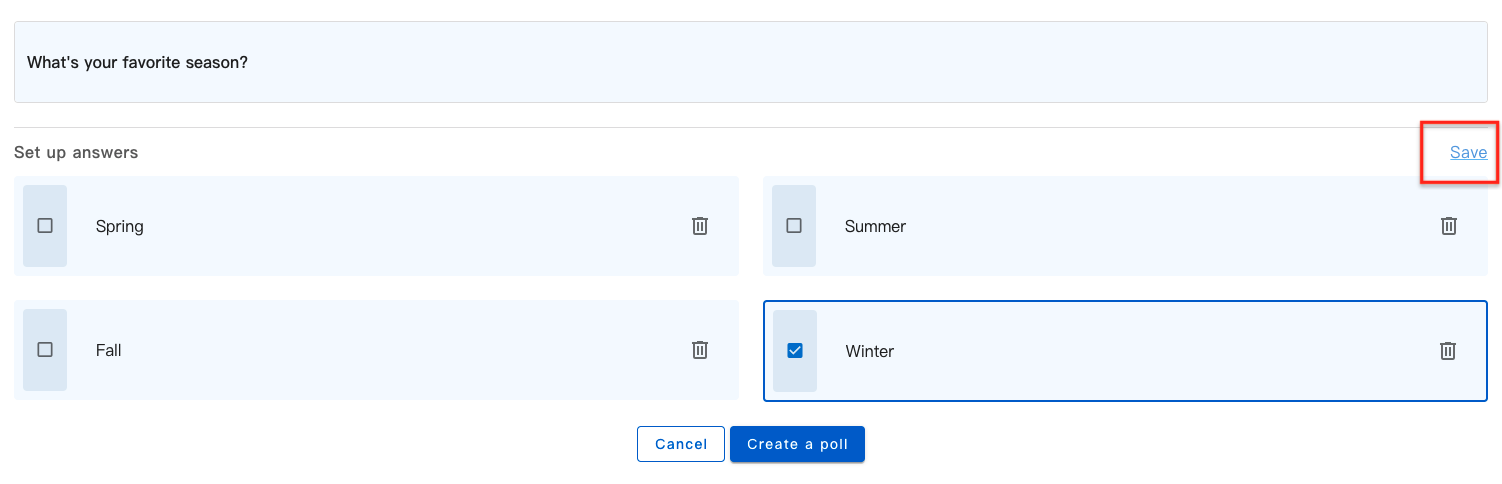
This function is optional. When you don’t mark any option, the option with the highest votes will be highlighted in blue automatically.
6. When information of the poll is filled in, click "Create a poll" button to save your poll settings.
7. You can find all created polls in the poll list. There are 4 poll status which will be shown under your poll question:

- Ready-to-go: Has not been started for voting
- Active: Users are voting in the poll

- Showing result: The poll result is being displayed to users

- Completed: The poll has been ended and users won’t see the poll again
8. If you want to delete a created poll, click the recycle bin icon. A deleted poll won’t be visible at the control room or in the live event report. You can only delete a poll when poll status is "Ready-to-go".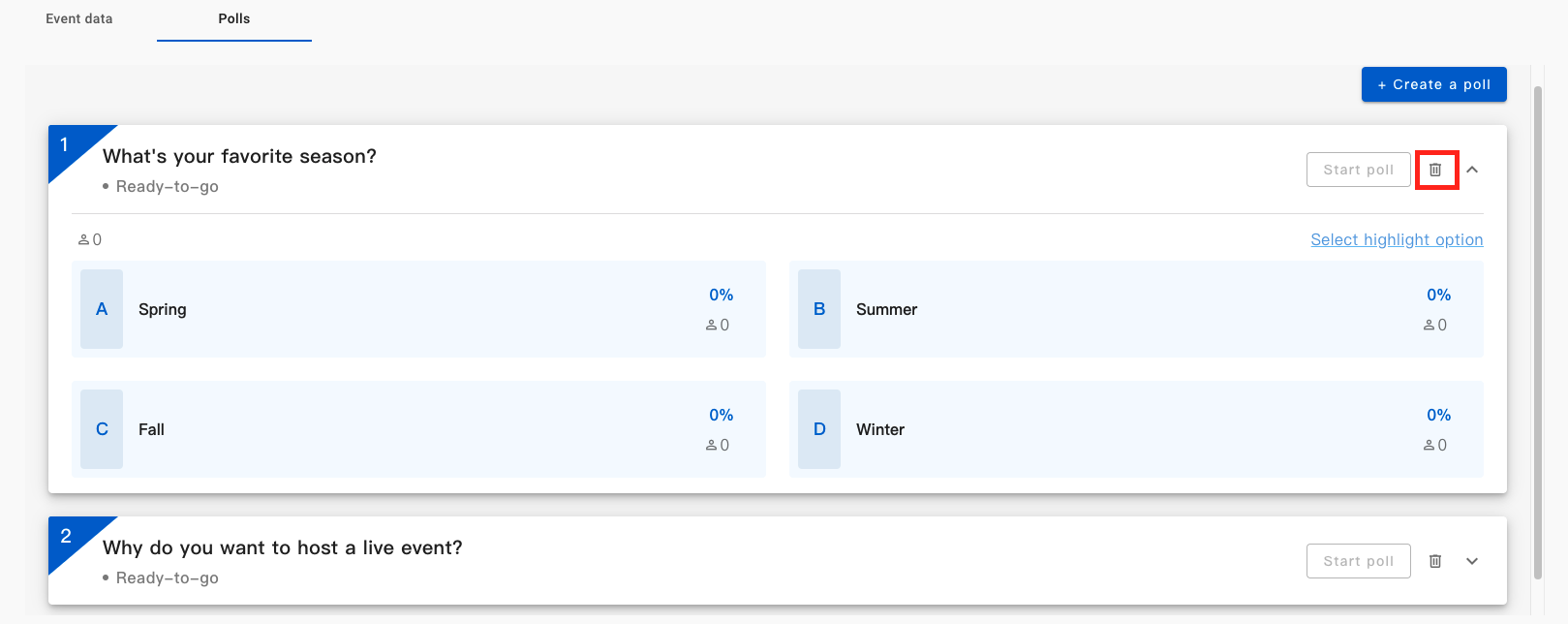
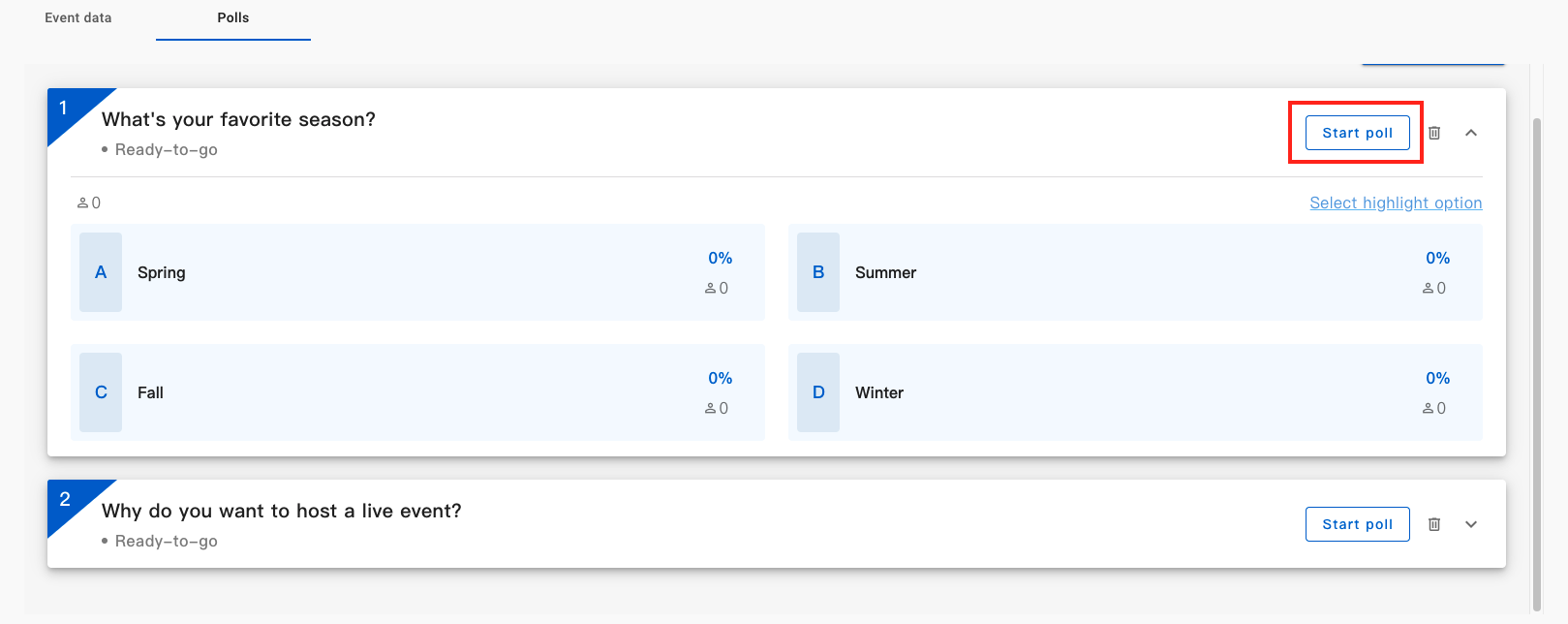
9. When the event status changes to "Preview" or "Live", you will be able to start a poll by clicking "Start poll" button. Your users will then see a poll overlaid on top of the player where they can vote. Each user has 1 vote for every poll and votes can be changed anytime during "Active" poll status.
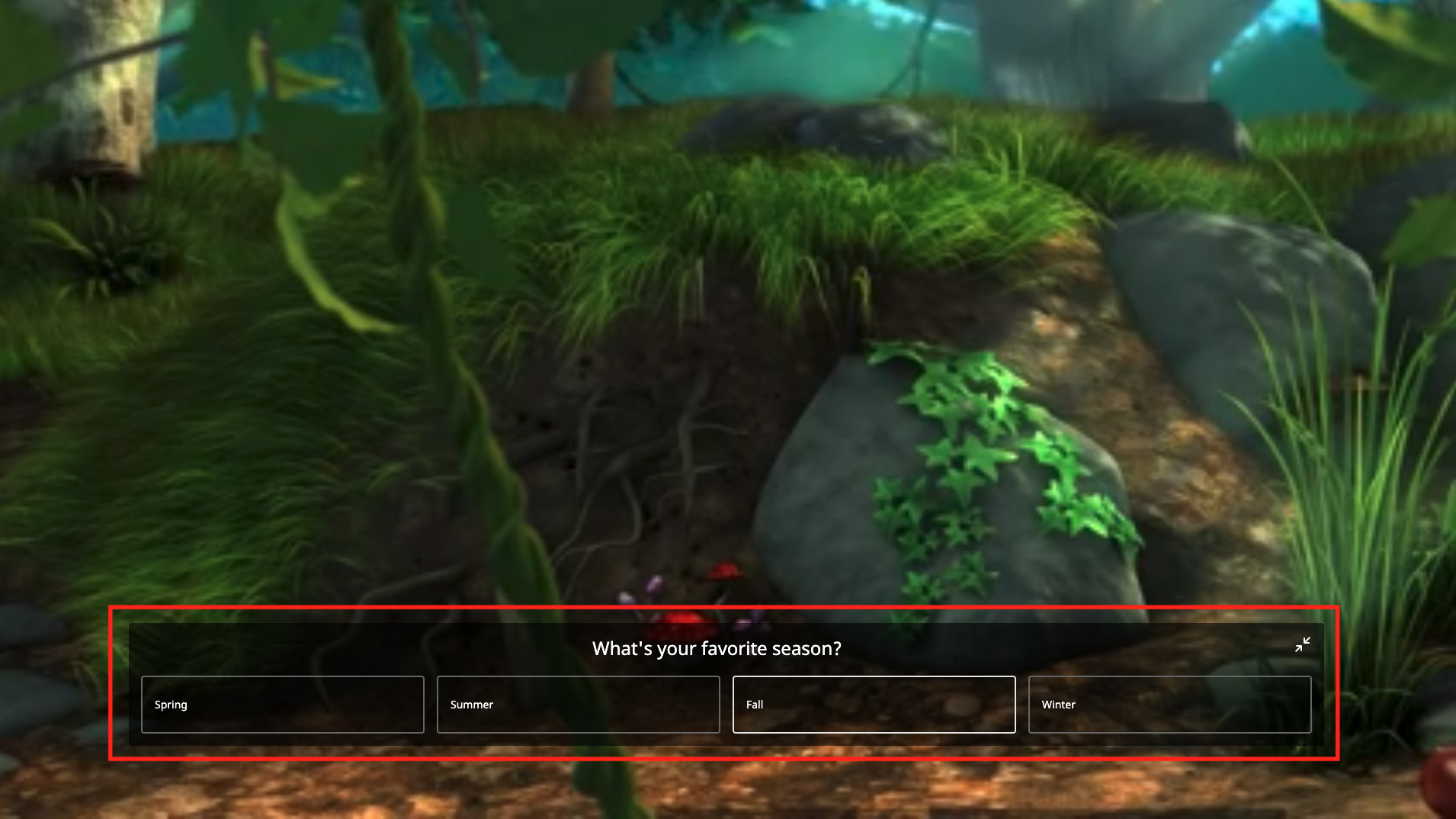
10. While the poll is opening for voting, you can monitor the real-time voting status at the control room. The data will be updated every second.
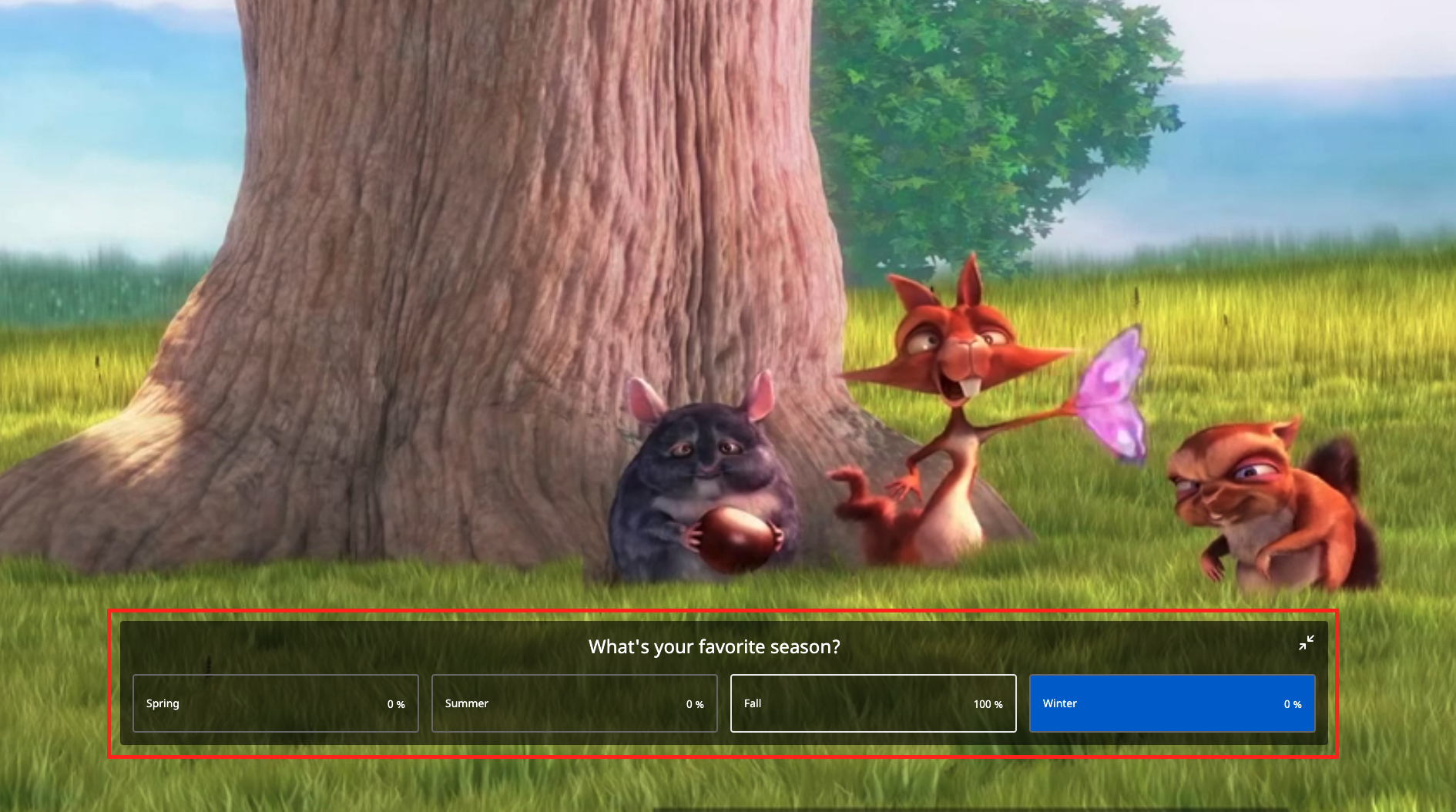
11. When it’s time to stop voting, click "Stop poll and show results on video" button to terminate the voting and then the final result will be overlaid on top of the player to your users. The users will only see the percentage of votes. 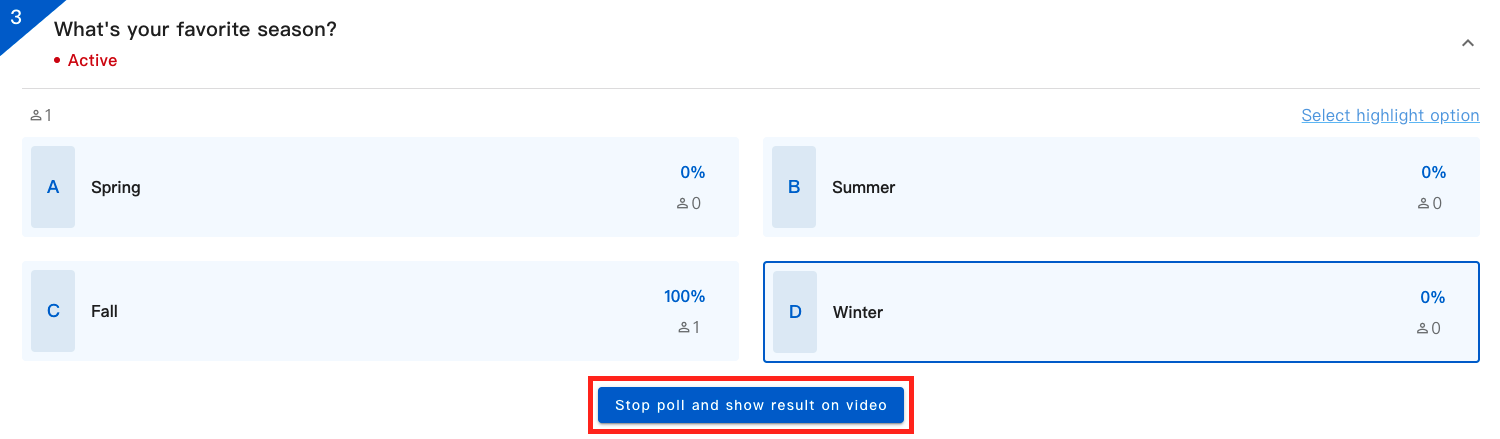
12. Click the "End poll" button to close the poll. The users will no longer see the poll result.
13. After the live event ends, you won’t be able to edit any poll settings. The poll data will be kept in event control room and live event report.
Note: Poll’s related details will be recorded in the event report, please look into Download and review event report for more information.