After live event has ended, please remember to click "End live" button to stop streaming service.
1. Click "Control room" button in the left sidebar and all the created events will be listed.

2. Click the on air live event you want to end (Status: Live).

Note: If you want to display new cover image to users after live event ends, please upload a new one before clicking "End live" button.
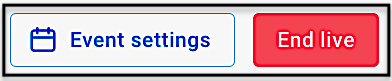
3. When entering the on air live event, you can find "End live" button in the upper right corner. Click "End live" button to end the live event.
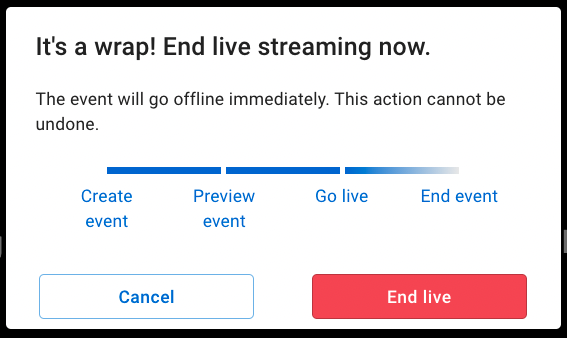
4. Notification of "It's a wrap! End live streaming now." will pop up, please click "End live" button again to end live event.
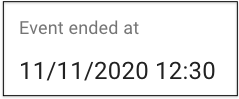
5. After you click end button, you can scroll to the bottom of this Control room page to check event end time at: Event information section > Event ended at.
Important: After live event ends, it will go offline right away and can not be on air again.
Note:
1. What cover image shows under different live statuses after event ends
- At “Encoding” status : Show cover image
- At “Ended” status:Show cover image
- At “Archived” status:Only black screen with error message

2. If you want to know related information about Live to VOD, please look into Utilize Live to VOD for more details.