Simulive playback mode provides the way to easily publish the VOD in the form of the event after completing a large number of video encoding and encryption through BlendVision LOOM efficiently. Before starting to set up a simulive event in playback mode, you should accomplish the video encoding via BlenVision LOOM first.
1. Accomplish the video encoding on BlendVision LOOM
Following the Getting Started: BlendVision Encoder to start from account registration to create your encoding jobs. In order to simplify the setting process, BlendVision LOOM has optimized in the output of encoding videos and the setting of content protection.
Please refer to sections on Content protection and Output and upload information in the article Create a New Project and the section on ProfileSet Configuration in the article Upload Your Video Contents to Create a New Encoding Job - via Console
Note:
- If you want to enable the DRM function of the Simulive event in playback mode, you need to complete the content protection settings in BlendVision LOOM for your encoding job in advance, otherwise, the simulive event will not have DRM protection.
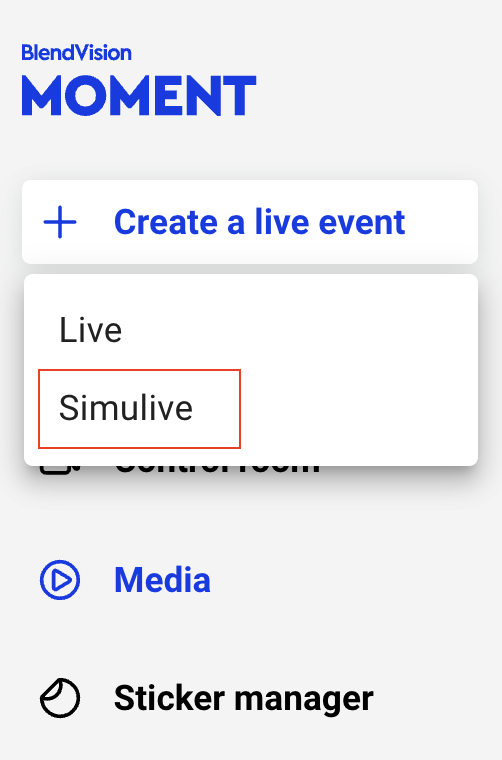
2. Click "Create a live event" on the upper left corner, and select "Simulive"
3. Under Event mode, select "Playback Mode"
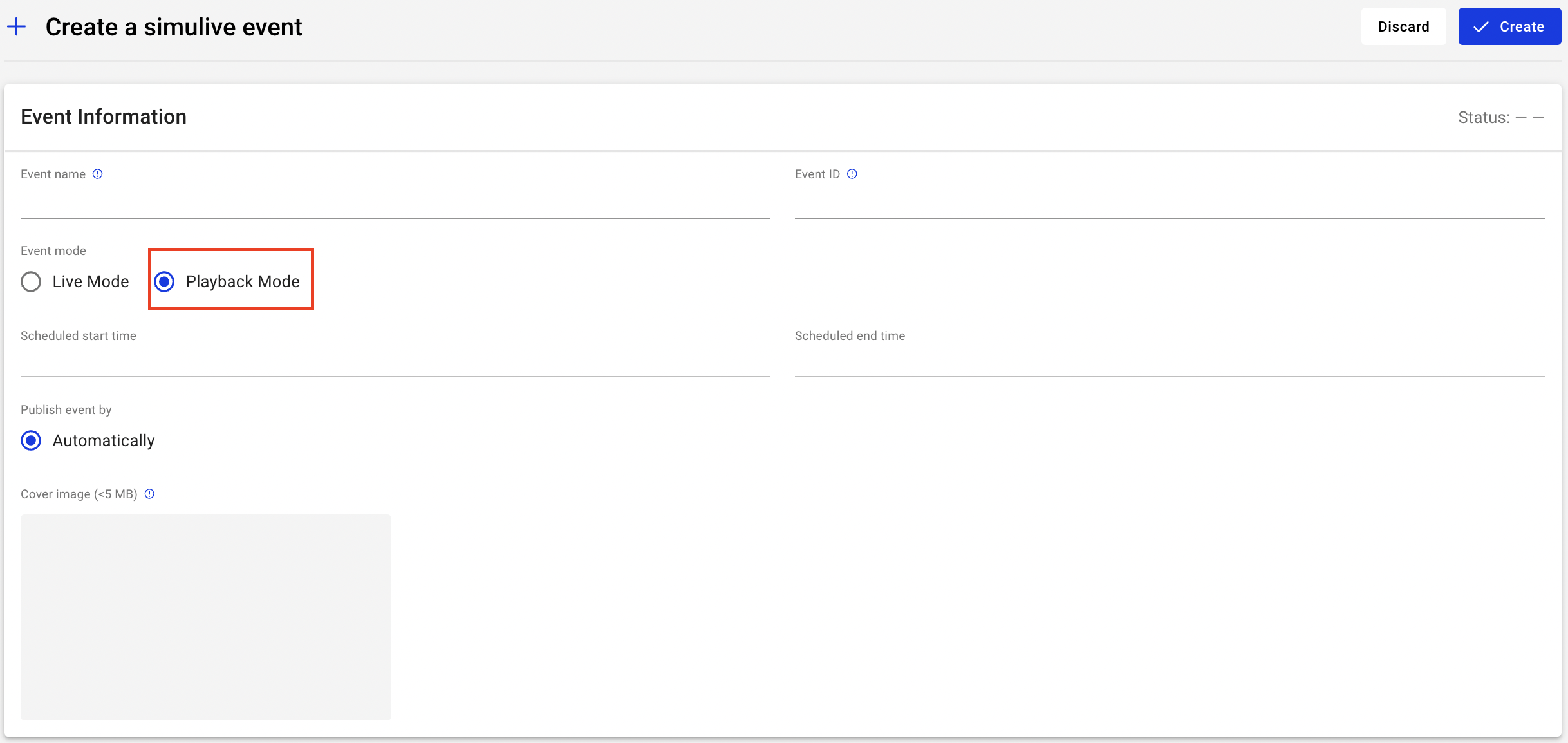
4. Edit event settings, most of the columns are the same as the live event, refer to Create a live event. The following is an introduction to the differences.
- Publish event by Automatically
- Simulive will start at "Scheduled start time" which you set automatically; the event will also end at "Scheduled end time" automatically.
- Scheduled start time:
- simulive start time. The scheduled start time has to be at least 10 mins later than the time you create the event.
- Scheduled end time:
- The Scheduled end time has to be set later than the Scheduled start time. If the event’s time zone is different from the system time, please fill in based on the system time zone.
5. Mark the checkbox if you want to utilize Chatroom in the playback mode of simulive. And once you enable the chatroom, you can directly choose the main color of them for your chatroom. After that, you would see your chatroom when your live event goes to the preview status.
Note:
- Chatroom feature supports both public and private events. But, they are not editable after you creating the event. As a result, set up your chatroom setting before kick-off.
- If you want to know how to manage settings of chatroom, please look into Manage settings of chatroom for more details.
Note: Recording for VOD and poll functions are unavailable in playback mode
6. Enter the required information “BlendVision LOOM API Key” and "BlednVision LOOM Job ID" to acquire a video from BlendVision LOOM directly.

7. Click "Create" once you have edited all the required fields.
8. When the event status transfers from ‘“VOD processing” to "Ready for VOD", you can find the "Preview VOD" button in the upper right corner of the File section on the Event settings page.
Click the "Preview VOD" button to preview the VOD on the popup KKStream player to confirm the content has been successfully deployed.

9. Edit simulive in playback mode event
Event status of whole process for simulive in playback mode event : Preparing > VOD Processing > Ready for VOD > VOD > Ended > Archived
There are different event statuses on the Event list to show the current situation. After the event is created, the status will show Preparing until 12 hours before your event starts.
- Scheduled start/end time and video file cannot be edited once a simulive event is created.
- For other editable fields, please refer to Edit a live event
During event
Simulive playback mode provides chat function, to utilize live chat during simulive playback events, refer to Manage settings of chatroom,Monitor your live performance for more details.